Our Catalog Has Recently Updated. Learn More Here.

In response to customer library feedback, our vendor is changing how account details are displayed in the catalog. The blue My Bookshelf toolbar, pictured below, will no longer display at the bottom of the screen:

Account Portal replaces My Bookshelf and consolidates all account features into a single interface to improve usability and navigation. You can manage your account information, checkouts, holds, reading history, fines, saved searches and bookmarks from a single location.
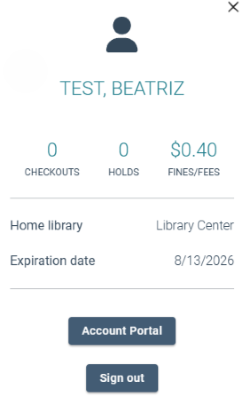
To access the Account Portal, click on the Log in button at the top of the screen. Once you are logged in, a button for Account Portal will appear.

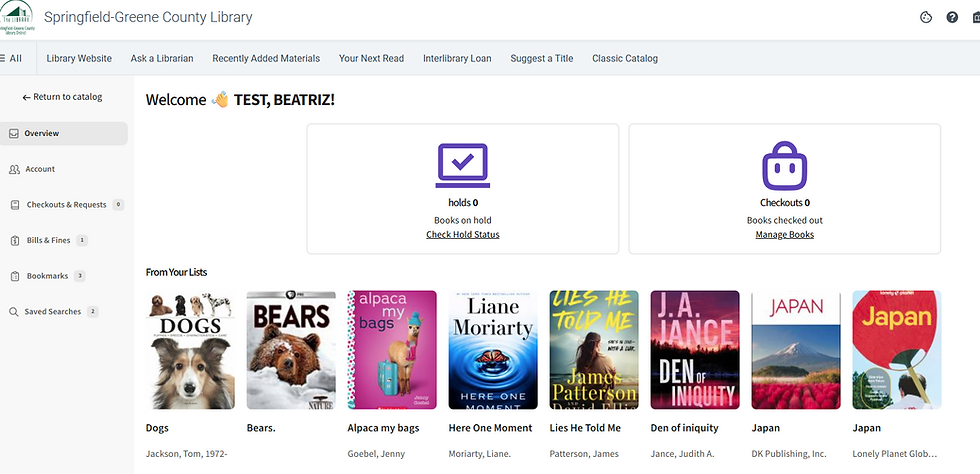
Clicking on Account Portal opens your account overview page, where you can access your profile, checkouts and holds, saved items (“bookmarks”), saved searches and more. If you have titles saved to a “For Later” or personal list that are available for checkout, a selection of those will appear in a carousel for quick viewing, labeled “Your Next Read” in this example.
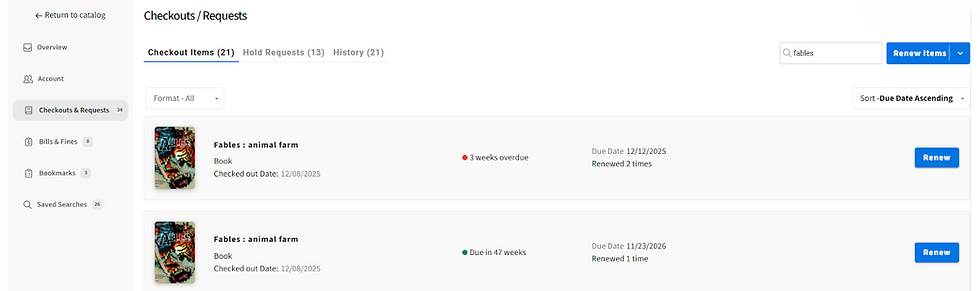
The left navigation menu displays different functions in your account that you can select and interact with. The Checkout & Requests page has up to three tabs where you can perform actions. Note that the left navigation menu shows the combined count of your Checkout Items plus your Hold Requests; the individual tabs for checkouts and holds have the subtotals of the relevant items in each list. If you have Reading History enabled in your account, you’ll also be able to access that through this page. If you do not, the option to enable saving your reading history will appear.
A new filter in your checkouts list will allow you to focus on a specific format. You’ll also find a new Search option to search these lists by title, as well as options to sort your lists by various criteria and take actions on checked-out items and holds.
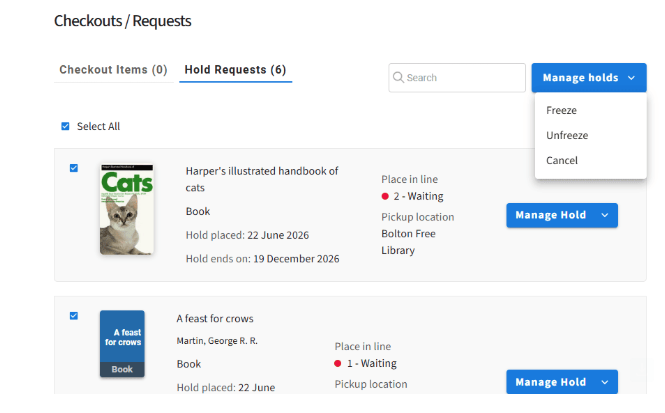
You can also now update the status of your holds in batch, or one at a time, with new options at the top of the Holds tab to select all or some of the holds in your list and Freeze, Unfreeze, or Cancel all selected items at once. The option to update each hold individually still appears to the right of each item in the list:
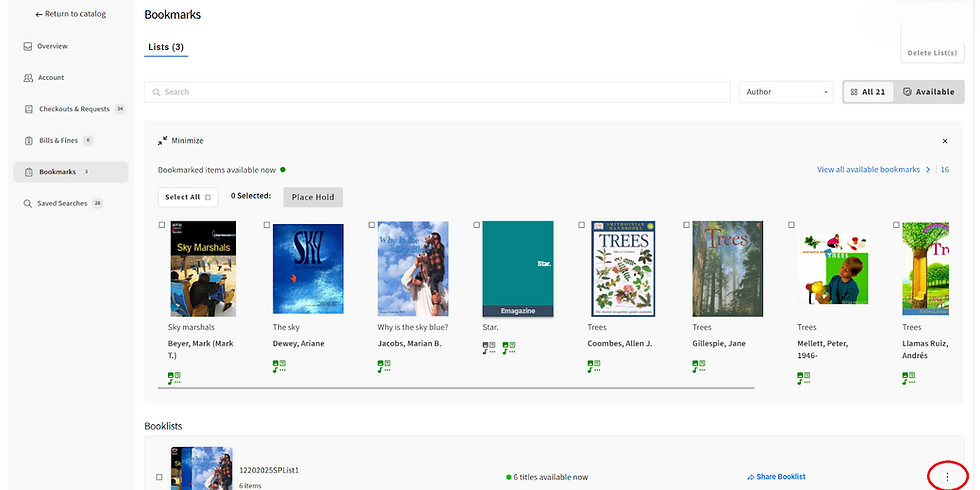
If you have titles saved to bookmark lists, selecting the Bookmarks option in the left navigation menu opens your saved lists. You have options for sorting, searching, and filtering bookmarked items available near the top of the screen. If you have saved items that are currently available for checkout, a carousel of a few of those items will display, with a link to see all available items you have bookmarked. The three vertical dots next to each list open the option to edit or delete the list.

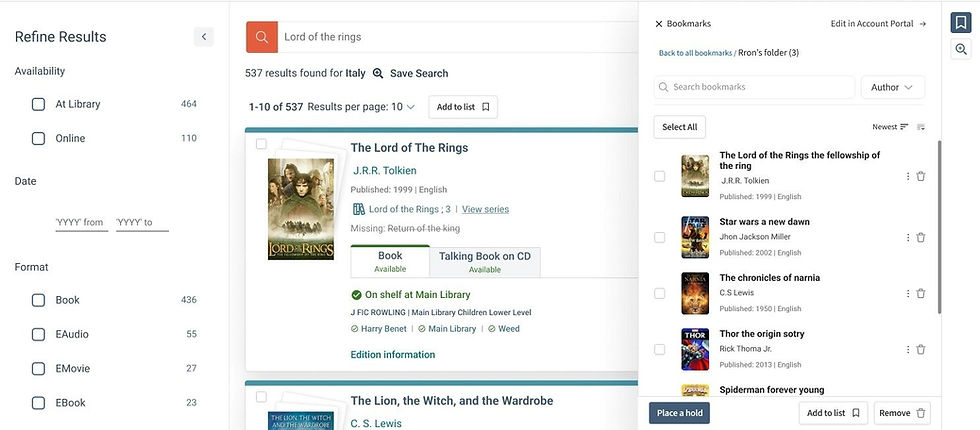
In addition to accessing booklists in Account Portal, a new option will also appear on the right side of the catalog search results page for quick access to saved lists and searches. Clicking the blue bookmark icon opens a panel that displays your lists and saved searches (if applicable). From this panel, you can open bookmarked items or run a saved search.
Note: If you are logged in, you will see your personal lists; if you are not, any items you have temporarily bookmarked in your session should appear.